Tuesday, July 20, 2010

How to Install Garmin to your 5230

File yang dibutuhkan : 


GarminMobileXTforSymbianS603rdEdition_50050.exe
GarminMobileXTFreeBasemap_4xxxx.exe
GarminMobileXTSupportFiles_4xxxx.exe
Nanvet_170_Full_Customize
garmin_kgen_1.5.exe

Cara menginstal :
  1. Sambungkan 5230 anda ke PC dengan mode Mass Storage
  2. Install GarminMobileXTforSymbianS603rdEdition_50050.exe ke MMC 5230 anda
  3. Install GarminMobileXTFreeBasemap_4xxxx.exe ke MMC 5230 anda
  4. Install GarminMobileXTSupportFiles_4xxxx.exe ke MMC 5230 anda
  5. Extract Nanvet_170_Full_Customize.rar sehingga terdapat file gmapsupp.img
  6. Cabut koneksi 5230 anda dari PC
  7. Install file /GarminMobileXT.sis yang ada di MMC anda
  8. Jalankan aplikasi Garmin pada 5230 anda.
  9. Ketika ada 4 pilihan, pilihlah “Connect to a Garmin GPS”
  10. Masuk ke “Tools” – “Settings” – “About”
  11. Catat “IMSI” anda kemudian keluar dari aplikasi Garmin di 5230 anda
  12. Sambungkan kembali 5230 anda ke PC
  13. Jalankan garmin_kgen_1.5.exe
  14. Masukan IMSI ke aplikasi keygen, pastikan “Garmin Mobile XT” terpilih. Lalu klik “Generate”
  15. Buka Notepad ketik hasil unlock code dan Save As, pilih All Files pada save as type dan beri nama “sw.unl” di folder Garmin pada MMC anda
  16. Copy file “gmapsupp.img” dari PC ke folder Garmin di MMC anda
  17. Cabut koneksi 5230 anda dari PC
  18. Jalankan Garmin anda
  19. Masuk ke “Tools” – “Settings” – “System” – “Remote GPS” – “Use Attached/Built-in GPS” – “Enable” – “Done”
  20. Tunggu sampai mendapatkan sinyal GPS
  21. Garmin anda siap digunakan
Jika butuh peta indonesia atau negara lain untuk garmin anda, silahkan baca ini

Credit to arieonline

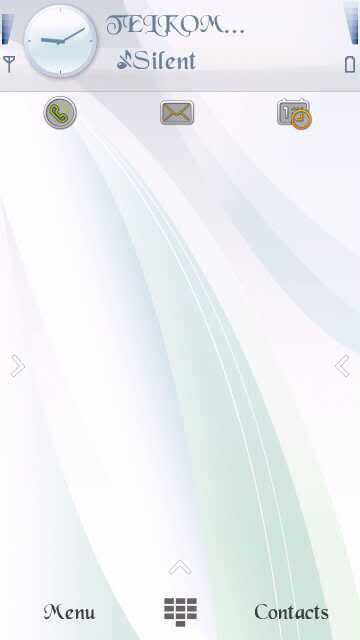
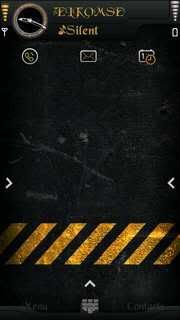
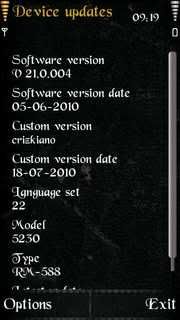
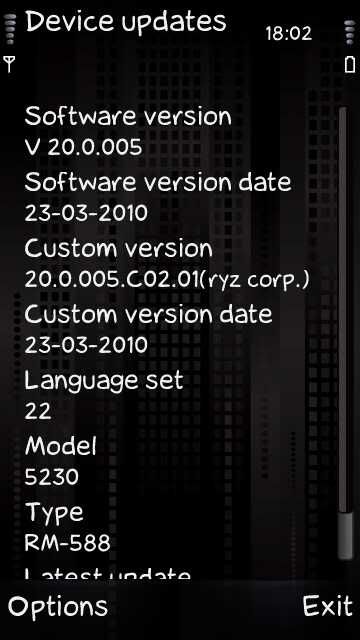
CFW 5230 by me [ryz] v21.0.4


features:
same with v20, added:
- win7 boot sound
- new boot screen
- browser drive cache change to e:
- default file manager shows e:
- disables Kinetic Scrolling in Short Lists
- added 5 HS : Finger Use, Full Page, Basic Omnia, navigation bar Satio, Contacts bar
- alt theme
- new font [credit to hroen]
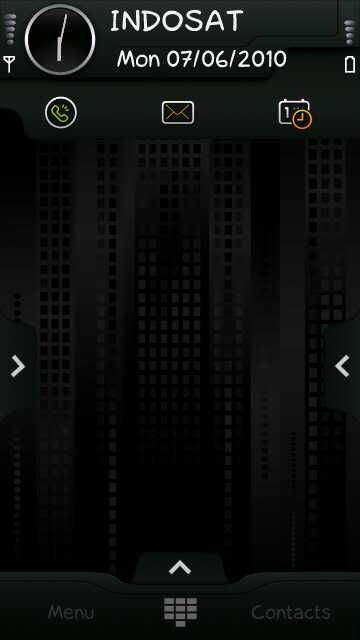
- dark city theme removed
- cartoon font removed


download here

Sunday, June 13, 2010

Online Ovi Chat di komputer


Pulsa anda habis padahal ingin online ovi chat? Saya punya beberapa aplikasi agar anda bisa online di ovi chat melalui PC.

Pilih salah satu antara Psi, Adium, atau Pidgin

Configuring Psi:

To download Psi, please go to: here 

To configure Psi to run on Nokia Chat, follow the steps:

1. Open Psi.
2. Click the Psi symbol and select Account Setup.
3. Click Add n the Jabber Accounts window
4. Name your account in the Name field, e.g. "Nokia Chat"
5. Check that Register new account is not selected.
6. Click Add.
7. Enter your Nokia Account username to Jabber ID field

psi_account_properties.png

8. Click the Connection tab.
9. Select all checkboxes, except 'Probe legacy SSL port.'
10. Enter chat.ovi.com in the Host field,
11. Enter 5223 in the Port field
12. Choose Legacy SSL in the Encrypt connection drop-down menu

psi_account_properties_5223.png

13. Click Save and your done!

Configuring Adium: 

To download Adium, please visit: here

To configure Adium to run on Nokia Chat, follow the steps:

1. Start Adium
2. Select Preferences from Adium menu
3. Select Account preferences pane (should be the left-most tab)
4. Click the plus (+) button at the bottom left corner for adding a new account (select Jabber from the drop-down list)
5. Fill in your Nokia Account in the username field

adium_add_account-thumb-400x264.png

6. Tab over to Options tab and configure the following details:
  • Connect server: chat.ovi.com
  • Port: 5223
  • Force old-style SSL: Tick the box
  • Require SSL/TLS: Tick the box

adium_options-thumb-400x264.png

7. Click OK and your done!

Configuring Pidgin:

To download Pidgin, please visit: http://www.pidgin.im/

To configure Pidgin to run on Nokia Chat, follow the steps:

1. Start Pidgin
2. Select Add/Edit from Accounts menu
3. Click Add from the Accounts dialog
4. Fill the Add account window with following details:
  • Protocol: XMPP
  • Username: your Nokia Account (without @ovi.com)
  • Domain: ovi.com
  • Password: you may enter your password if you want to sign on automatically, but it is recommended that you leave it empty for security reasons
  • Remember password: check the box if you'd like Pidgin to remember your password (you won't be prompted to enter it each time you sign in, if you select this option)

pidgin_add_account.jpg


5. Click Advanced tab and configure it as follows:
  • Require SSL/TLS: Tick the box
  • Force old (port 5223) SSL: Tick the box
  • Connect port: 5223
  • Connect server: chat.ovi.com 

pidgin_add_account_advanced.jpg
[Image edited 5.8.2008]

6. Click Save and your done!

sumber : betalabs.nokia.com 

Flashing your 5230 with JAF

Bagaimana cara flashing 5230? Flashing digunakan untuk memasukkan file FW ataupun CFW ke 5230 anda. Download tutorial flasing disini (Indonesian version) atau disini (English version)


Credit to orewriter

Wednesday, June 09, 2010

CFW 5230 by me [ryz]

Peluncuran CFW 5230 created by Ryz

features :

- disable mynokia welcome
- added file browser [goodbye x-plore]
- permanent hack
- vodafone+orange HS
- disable boot-up application
- new boot and shutdown screen
- use spinslide theme effect [credit to nuvoz]
- disable keyboard light [saver battery power]
- use theme darkcity
- speeds up your device a lot because of some graphics tweaks! games and applications run faster
- enables sending of SIS, SISX, JAR files via Default File manager
- moves the RAM Cache to C: for super fast performance
- lightning fast screen rotation [boosts your acceleratometer)
- font changed to cartoon [credit to orewriter]
- chinese and malay deleted
download here


Donations

Please press donate button below..